TOOLRELIEF DECISION INTELLIGENCE
- Decision
- Use Secure Remote Access Checklist for Small Teams to verify the important conditions that should be checked before commitment, implementation, renewal, or another material action.
- Evidence Basis
- A structured verification checklist based on the decision conditions and risk signals documented on this page.
- Best Used For
- Checking whether the important decision conditions have been considered before commitment or implementation.
- Decision Boundary
- This page provides independent decision support rather than a guaranteed outcome. Product capabilities, pricing, third-party terms, and operating conditions can change.
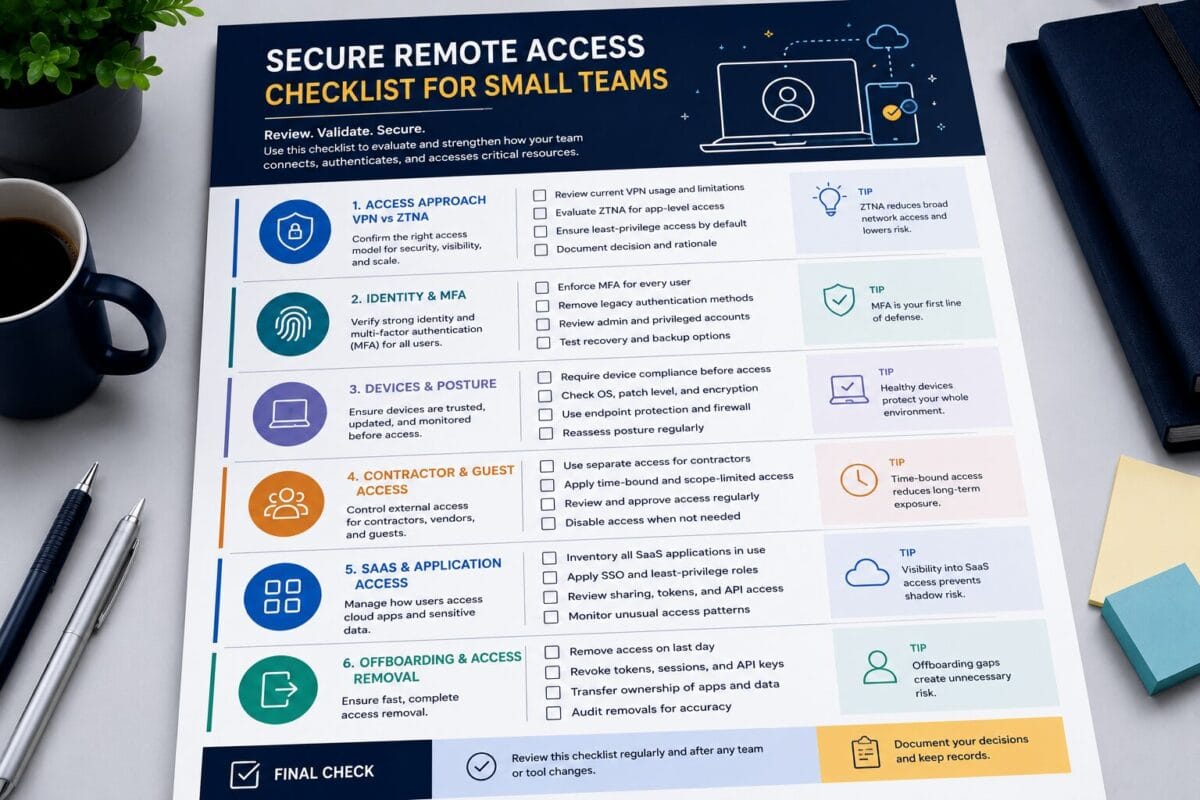
Secure Remote Access Checklist for Small Teams
Quick Navigation ✔
ToggleDecision Snapshot
Review users, contractors, MFA, passwords, devices, SaaS admin access, and offboarding before changing secure access tools.
ZTNA may be worth evaluating when access needs to depend on identity, app, device, role, or risk level.
The first step is finding access gaps. The tool decision should come after the access review.
Run this checklist if contractors, MFA, devices, SaaS admin access, or travel work are unclear.
This checklist is for small teams that need a practical access review before making a tool decision. It is not a vendor ranking and it is not a promise that one tool will solve every access risk.
The goal is simple:
Find the access gaps first. Then decide whether to keep VPN, improve the current setup, evaluate business VPN alternatives, evaluate ZTNA, or fix password, MFA, device, and offboarding basics.
Who Should Use This Checklist
This checklist is built for:
- solo founders,
- small businesses,
- remote teams,
- lean teams,
- operators,
- contractor-heavy teams,
- teams working across travel and public Wi-Fi,
- teams reviewing VPN access,
- teams comparing VPN and ZTNA,
- teams reviewing business VPN alternatives,
- and teams that need a simple access review before adding another security tool.
Use it if your team is asking:
- Who still has access?
- Are old users still active?
- Are contractors removed quickly?
- Is MFA actually enforced?
- Are passwords managed properly?
- Are devices known and updated?
- Are SaaS admin accounts exposed?
- Does VPN access open too much?
- Do we need ZTNA, or do we need cleanup first?
The Secure Remote Access Checklist
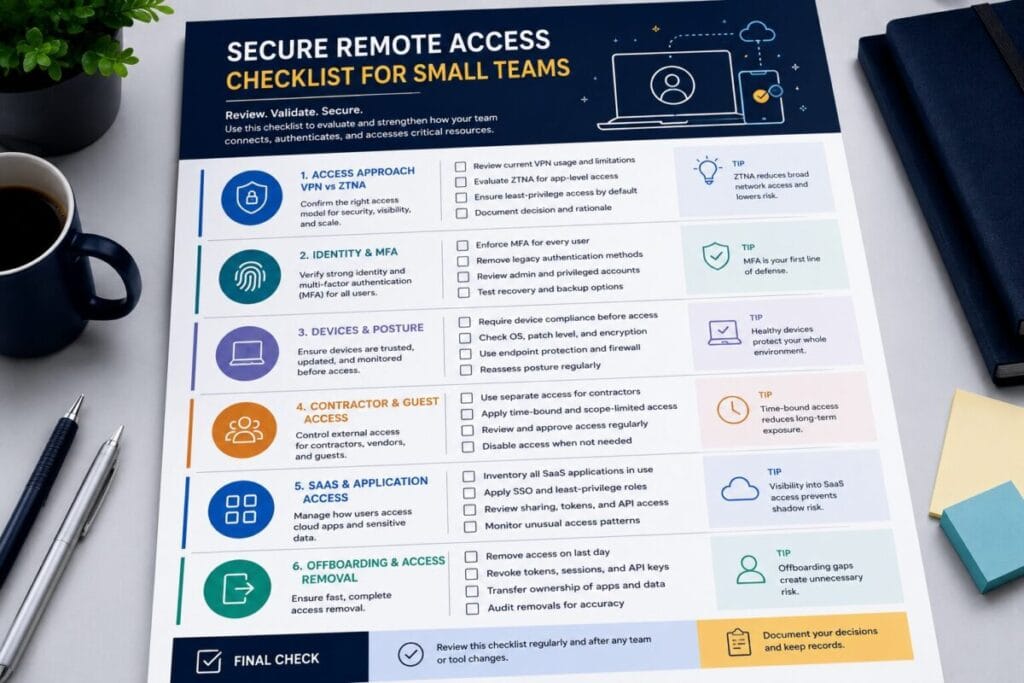
Use each section as a working review. You can copy the checkbox items into a document, spreadsheet, or task tool.
1. User Access
Checklist Items
- [ ] Review all current users with access to work systems.
- [ ] Identify all admin users.
- [ ] Identify inactive users.
- [ ] Separate employees, founders, contractors, vendors, and temporary users.
- [ ] Confirm each user still needs access.
- [ ] Remove users who no longer need access.
- [ ] Review personal email accounts used for business tools.
- [ ] Check who owns critical accounts such as email, billing, domain, cloud, and password manager accounts.
- [ ] Confirm high-risk users have MFA enabled.
- [ ] Document who owns user access review.
Why It Matters
Remote access risk starts with user access. If the team does not know who has access, it cannot make a good VPN, ZTNA, or security tool decision.
A small team may only have a few people, but access can spread quickly across email, SaaS apps, VPN accounts, password vaults, admin panels, cloud consoles, and client systems.
What Small Teams Often Miss
- old founder accounts,
- former contractors,
- personal emails used for business access,
- shared admin accounts,
- duplicate accounts,
- users inside password manager vaults,
- users with billing or owner permissions,
- and users who no longer work on the project but still have access.
Next Action
Create one user access list. Mark each user as keep, reduce, or remove.
2. Contractor Access
Checklist Items
- [ ] List all active contractors and freelancers.
- [ ] Identify what each contractor needs access to.
- [ ] Identify what each contractor should not access.
- [ ] Set an access end date for each contractor.
- [ ] Limit contractor access to project-specific tools where possible.
- [ ] Review contractor access to password manager vaults.
- [ ] Review contractor access to shared files.
- [ ] Review contractor access to client systems.
- [ ] Remove access when work ends.
- [ ] Rotate shared credentials if a contractor used them.
- [ ] Document who approves and removes contractor access.
Why It Matters
Contractor access is one of the most common access gaps for small teams.
Contractors often need temporary access, but that access can become permanent if no one reviews it. The risk is not only the contractor. The risk is unclear scope, weak offboarding, shared passwords, and access that lasts longer than the work.
What Small Teams Often Miss
- contractors in password vaults,
- access to project boards,
- shared folders,
- staging systems,
- client portals,
- old Slack or email accounts,
- admin permissions given for convenience,
- and credentials that were never rotated after the work ended.
Next Action
For each contractor, define: what they need, what they do not need, who approved access, and when it ends.
3. VPN / ZTNA / Secure Access Setup
Checklist Items
- [ ] Identify who has VPN access.
- [ ] Identify who has ZTNA or secure access platform access, if used.
- [ ] Confirm MFA is enabled for VPN or secure access login.
- [ ] Review what VPN access opens after connection.
- [ ] Identify whether VPN access is too broad.
- [ ] Identify private apps or systems that need tighter access.
- [ ] Check whether contractors have VPN access.
- [ ] Review whether access should be app-specific instead of network-wide.
- [ ] Identify who manages VPN or secure access settings.
- [ ] Review access logs if available.
- [ ] Decide whether the current VPN should be kept, improved, or replaced.
Why It Matters
The question is not only whether your team uses VPN or ZTNA.
The better question is:
Does the current access setup give the right people the right access without exposing too much?
A VPN may still be enough for simple access. ZTNA may be worth evaluating when access needs to depend on users, apps, devices, contractors, or risk level.
What Small Teams Often Miss
- old VPN users,
- VPN access that opens too much,
- contractors with broad access,
- missing MFA,
- unclear admin ownership,
- no regular access review,
- and private systems that should not be reachable by every connected user.
Next Action
Review whether the current VPN access scope is narrow and controlled. If it is too broad, compare access models before changing tools.
4. Password Manager Hygiene
Checklist Items
- [ ] Confirm the team uses a password manager.
- [ ] Review all users with access to the password manager.
- [ ] Remove inactive users.
- [ ] Review shared vaults.
- [ ] Separate admin credentials from everyday credentials.
- [ ] Remove contractors from vaults they no longer need.
- [ ] Check for duplicate or old credentials.
- [ ] Check recovery settings.
- [ ] Confirm MFA is enabled on the password manager.
- [ ] Review who can export or manage vaults.
- [ ] Document the password manager owner.
Why It Matters
Many remote access problems start with passwords, not VPN.
If passwords are shared in chat, documents, spreadsheets, browsers, or old vaults, replacing VPN will not fix the biggest access gap.
What Small Teams Often Miss
- passwords saved in browsers,
- shared credentials in chat,
- old contractor vault access,
- admin credentials mixed with normal logins,
- weak recovery settings,
- password manager accounts without MFA,
- and users who can still access sensitive credentials after leaving.
Examples teams may encounter in this category include 1Password and Bitwarden. These are examples only.
Next Action
Clean the password manager before deciding that VPN replacement is the first priority.
5. MFA Readiness
Checklist Items
- [ ] List accounts that require MFA.
- [ ] Enforce MFA on email accounts.
- [ ] Enforce MFA on password manager accounts.
- [ ] Enforce MFA on cloud, domain, DNS, billing, and admin accounts.
- [ ] Review MFA for SaaS admin users.
- [ ] Review MFA for contractors with sensitive access.
- [ ] Confirm backup codes are stored safely.
- [ ] Review recovery email and phone settings.
- [ ] Identify accounts where stronger MFA may be needed.
- [ ] Document who manages MFA settings.
Why It Matters
MFA is not a checkbox if it is only enabled on some accounts.
Small teams often enable MFA on obvious tools but miss recovery accounts, domain accounts, billing systems, password managers, cloud consoles, and admin panels.
What Small Teams Often Miss
- MFA on password managers,
- MFA on domain and DNS accounts,
- MFA on billing owners,
- MFA on recovery emails,
- MFA for admin users,
- MFA on client systems,
- and backup code storage.
Next Action
Start with high-risk accounts: email, password manager, billing, cloud, domain, DNS, and admin accounts.
6. Hardware Security Keys
Checklist Items
- [ ] Identify the most sensitive accounts.
- [ ] Identify founders, admins, and finance users.
- [ ] Decide whether any accounts need hardware-backed MFA.
- [ ] Review account compatibility with hardware security keys.
- [ ] Create a backup key process.
- [ ] Create a lost-key process.
- [ ] Decide where keys should be stored.
- [ ] Review travel practicality.
- [ ] Document who needs keys and why.
- [ ] Review this setup after team changes.
Why It Matters
Hardware security keys can be useful for high-risk accounts, but they need planning.
They are not a magic fix. They are one access layer for accounts where account takeover would create serious damage.
What Small Teams Often Miss
- backup keys,
- lost-key process,
- account compatibility,
- travel use,
- user onboarding,
- and which accounts actually need hardware keys.
Example teams may encounter in this category: YubiKey. This is an example only.
Next Action
Identify only the accounts where stronger MFA matters most. Do not roll out hardware keys randomly without a backup process.
7. Device Posture
Checklist Items
- [ ] List devices used for work access.
- [ ] Identify personal laptops.
- [ ] Identify contractor devices.
- [ ] Identify phones used for work access.
- [ ] Check operating system updates.
- [ ] Check screen lock settings.
- [ ] Check disk encryption where available.
- [ ] Review browser profiles used for work.
- [ ] Review devices used while traveling.
- [ ] Define what happens if a device is lost.
- [ ] Remove access from devices no longer used.
Why It Matters
Remote access depends on the device as much as the user.
A strong password and MFA setup can still be weakened by unmanaged devices, shared laptops, old phones, contractor machines, or lost devices with active sessions.
What Small Teams Often Miss
- work email on phones,
- personal laptops used for admin tasks,
- contractor devices,
- old laptops,
- shared family machines,
- browser-saved credentials,
- travel devices,
- and active sessions on devices that are no longer controlled.
Next Action
Create a device list. Mark devices as known, unknown, personal, contractor-owned, travel-used, or no longer allowed.
8. SaaS Admin Access
Checklist Items
- [ ] List SaaS tools with admin roles.
- [ ] Identify account owners.
- [ ] Identify billing owners.
- [ ] Identify users with admin permissions.
- [ ] Remove old admin users.
- [ ] Enforce MFA on admin users.
- [ ] Review integrations and connected apps.
- [ ] Review automation tools.
- [ ] Review support inbox access.
- [ ] Review customer data access.
- [ ] Review domain, DNS, email, and cloud admin accounts.
- [ ] Document who owns each admin account.
Why It Matters
Many small teams are SaaS-heavy. That means the biggest exposure may not be a private network. It may be SaaS admin access.
A user with access to billing, CRM, cloud, email admin, password manager, DNS, support inbox, or automation tools may have more power than a VPN user.
What Small Teams Often Miss
- billing owner accounts,
- account owner roles,
- domain and DNS admin accounts,
- cloud consoles,
- automation tools,
- connected apps,
- support inboxes,
- old SaaS admins,
- and integrations created by former users.
Next Action
List your highest-risk SaaS admin accounts and review access before making a VPN or ZTNA decision.
9. Travel and Public Wi-Fi Access
Checklist Items
- [ ] Identify team members who work while traveling.
- [ ] Review public Wi-Fi habits.
- [ ] Confirm VPN or secure access behavior during travel.
- [ ] Confirm MFA works while traveling.
- [ ] Confirm password manager access while traveling.
- [ ] Store recovery codes safely.
- [ ] Review device lock settings.
- [ ] Review lost-device process.
- [ ] Review hardware key practicality for traveling users.
- [ ] Avoid using travel devices for unnecessary admin access.
- [ ] Review SaaS admin access from travel environments.
Why It Matters
Travel changes the access environment.
A user working from a hotel, airport, café, coworking space, client location, or unfamiliar network has different risk than a user working from a controlled office.
The point is not to panic about travel. The point is to prepare access, MFA, devices, and recovery before travel creates a problem.
What Small Teams Often Miss
- MFA access while abroad,
- backup methods,
- recovery codes,
- hardware key backup,
- phone access,
- hotel and airport Wi-Fi behavior,
- and what happens if a laptop or phone is lost.
Next Action
Create a simple travel access rule: which accounts can be accessed while traveling, which require extra care, and what to do if a device is lost.
10. Offboarding
Checklist Items
- [ ] Remove VPN access.
- [ ] Remove ZTNA or secure access platform access if used.
- [ ] Remove password manager access.
- [ ] Remove SaaS app access.
- [ ] Remove admin permissions.
- [ ] Remove email and workspace access.
- [ ] Remove shared file access.
- [ ] Remove client system access.
- [ ] Rotate shared credentials if needed.
- [ ] Review contractor access separately.
- [ ] Remove device access or sessions where possible.
- [ ] Document offboarding completion.
Why It Matters
Offboarding is where many access gaps remain.
A person may leave the team, finish a project, or stop working with the company, but access can remain active across VPN, SaaS apps, shared files, password vaults, admin panels, and client systems.
What Small Teams Often Miss
- client portals,
- shared credentials,
- contractor vault access,
- domain tools,
- cloud accounts,
- connected apps,
- shared folders,
- and admin roles inside SaaS tools.
Next Action
Create one offboarding checklist for employees and a separate one for contractors.
11. Access Review Cadence
Checklist Items
- [ ] Set a monthly or quarterly access review.
- [ ] Assign one owner for access review.
- [ ] Review current users.
- [ ] Review contractors.
- [ ] Review admin accounts.
- [ ] Review SaaS permissions.
- [ ] Review password manager users.
- [ ] Review VPN or secure access users.
- [ ] Review device list.
- [ ] Review offboarding gaps.
- [ ] Document changes made during the review.
Why It Matters
Access risk grows quietly when no one reviews it.
Temporary access becomes permanent. Contractors stay active. Old admins remain in tools. Devices change. SaaS permissions expand. Password vaults accumulate users.
A simple review cadence prevents silent access drift.
What Small Teams Often Miss
- assigning an owner,
- documenting changes,
- reviewing temporary users,
- reviewing contractor access,
- reviewing SaaS admins,
- and repeating the review after team changes.
Next Action
Set a recurring access review. Keep it simple enough that the team will actually do it.
12. What to Do Next
Checklist Items
- [ ] Decide whether your current VPN is still enough.
- [ ] Decide whether the VPN needs improvement before replacement.
- [ ] Decide whether business VPN alternatives should be evaluated.
- [ ] Decide whether ZTNA should be evaluated.
- [ ] Decide whether password manager and MFA cleanup should happen first.
- [ ] Decide whether device posture needs review first.
- [ ] Decide whether contractor access and offboarding are the real issue.
- [ ] Assign owners for the next three fixes.
- [ ] Set a follow-up access review date.
Why It Matters
A checklist should produce a decision, not just more concern.
The result should tell your team what to fix first and whether a tool decision is actually needed now.
What Small Teams Often Miss
Small teams often jump straight to tools before answering:
- who has access,
- what is exposed,
- which devices are trusted,
- whether MFA is enforced,
- whether contractors are removed,
- and whether SaaS admin access is controlled.
Next Action
Choose one path: keep VPN, improve VPN, evaluate alternatives, evaluate ZTNA, fix password/MFA, review devices, or clean contractor/offboarding access.
Remote Access Readiness Score
Use this simple manual score after completing the checklist.
0 Points
Not reviewed / unknown
The team does not know the current state or has not reviewed this area.
1 Point
Partially reviewed / gaps exist
The team has reviewed this area, but there are still visible gaps or unclear ownership.
2 Points
Reviewed and controlled
The team has reviewed this area, assigned ownership, and controlled the main access gaps.
Score these 10 sections:
- User access
- Contractor access
- VPN / secure access setup
- Password manager hygiene
- MFA readiness
- Device posture
- SaaS admin access
- Travel access
- Offboarding
- Access review cadence
Maximum score: 20 points
Readiness Levels
16–20: Green / Lower Access Risk
Your team has reviewed most access layers. That does not mean there is no risk, but it means the basics are visible and controlled.
Your next step:
- maintain the access review cadence,
- close remaining gaps,
- and review whether your current VPN still fits the access model.
CTA: Use ToolRelief’s VPN Subscription Review Checklist to decide whether your current VPN should be kept, improved, or replaced.
9–15: Yellow / Medium Access Risk
Your team has some controls, but there are clear gaps.
This often means:
- MFA is partial,
- password manager access needs cleanup,
- contractors need review,
- device posture is unclear,
- SaaS admin exposure is not fully mapped,
- or offboarding is inconsistent.
CTA: Use ToolRelief’s Cybersecurity Hub for broader access and security decisions, and use Device Intel if device posture is part of the risk.
0–8: Red / High Access Risk
Your team has too many unknowns to make a clean tool decision.
This often means:
- old users may still have access,
- contractor access is unclear,
- MFA is missing or inconsistent,
- passwords may be shared,
- SaaS admin access is exposed,
- device status is unknown,
- and offboarding may be incomplete.
CTA: Start with user removal, MFA, password manager cleanup, SaaS admin review, and offboarding. Then use ToolRelief’s VPN Subscription Review Checklist and Intel Hub to decide the next access model.
What to Fix First
If the checklist reveals multiple gaps, fix them in this order.
1. Remove Old Users
Start with users who should not have access anymore.
- old employees,
- former contractors,
- inactive users,
- duplicate users,
- personal emails no longer needed,
- and old admin accounts.
2. Enforce MFA on High-Risk Accounts
Prioritize:
- email,
- password manager,
- billing,
- cloud,
- domain and DNS,
- SaaS admin accounts,
- client systems,
- and recovery accounts.
3. Clean Password Manager Access
Review shared vaults, old users, contractor access, admin credentials, MFA, recovery settings, and export permissions.
4. Review Contractors
For each contractor, confirm what they need, what they do not need, how long access should last, who removes access, and whether shared credentials need rotation.
5. Identify SaaS Admin Exposure
List admin roles across billing, CRM, support, cloud, email, domain/DNS, automation tools, password manager, and customer data systems.
6. Review Devices
Check personal laptops, contractor devices, phones, travel devices, old devices, encryption, updates, screen locks, and lost-device process.
7. Decide Whether VPN Is Enough
If access is simple, users are known, MFA is enforced, and devices are clear, the current VPN may still fit.
8. Evaluate Business VPN Alternatives or ZTNA After Basics Are Clear
After cleanup, decide whether the team needs a cleaner VPN setup, a managed business VPN, ZTNA, stronger MFA, device posture process, or access review workflow.
When to Keep VPN
Keep VPN if:
- access needs are simple,
- users are known,
- devices are known,
- contractors are rare,
- MFA is enforced,
- password manager hygiene is strong,
- SaaS admin access is limited,
- offboarding is clean,
- and access is reviewed regularly.
A VPN can still fit small teams when the access model is narrow and well-managed.
Next step: use ToolRelief’s VPN Subscription Review Checklist to review whether the current VPN still matches your team’s access model.
When to Evaluate Business VPN Alternatives
Evaluate business VPN alternatives if:
- the current VPN is hard to manage,
- access is too broad,
- contractors need limited access,
- remote work has expanded,
- admin visibility is poor,
- the team needs better user management,
- or the current setup no longer fits how the team works.
A business VPN alternative does not always mean a totally different model. It may mean a managed business VPN, stronger secure access controls, or a different access workflow.
Next step: use ToolRelief’s Business VPN Alternatives for Remote Teams article.
When to Evaluate ZTNA
Evaluate ZTNA if:
- app-level access matters,
- contractors need restricted access,
- VPN access is too broad,
- device context matters,
- SaaS admin exposure is high,
- sensitive systems should not be reachable by every connected user,
- and the team needs more precise access rules.
ZTNA is not required for every small team. It is worth evaluating when access needs to depend on identity, app, device, role, or risk level.
Next step: read ToolRelief’s VPN vs ZTNA for Remote Teams article.
When to Fix Password/MFA First
Fix password and MFA first if:
- passwords are shared manually,
- MFA is missing or inconsistent,
- old users still have access to vaults,
- contractors remain in password manager accounts,
- admin credentials are mixed with normal logins,
- recovery settings are weak,
- or high-risk accounts do not have stronger login protection.
If the credential layer is weak, a VPN replacement may not solve the root issue.
Next step: use ToolRelief’s Cybersecurity Hub to review password hygiene, MFA, access control, and offboarding.
When to Review Devices
Review devices if:
- users work while traveling,
- personal laptops are used,
- contractor laptops are allowed,
- phones access work tools,
- devices are not consistently updated,
- lost-device process is unclear,
- or browser-saved credentials are common.
If the device layer is unclear, remote access decisions become harder.
Next step: use ToolRelief’s Device Intel for device readiness and Travel Ops for travel-related access decisions.
Service Categories Mentioned in This Checklist
This section is a category map, not a vendor ranking.
Business VPN / Managed VPN Platforms
Example only: NordLayer
This category appears because some teams still need VPN-style private access but want better administration, user management, MFA support, and access visibility.
Evaluate this category if your current VPN still solves the right access problem but is hard to manage or not built for team administration.
Compare user management, MFA support, admin controls, device support, contractor handling, and access visibility.
ZTNA / Zero Trust Access Platforms
Examples only: Cloudflare Zero Trust, Twingate
This category appears because some teams need app-specific, identity-aware, or contractor-limited access instead of broad network-level access.
Evaluate this category if access should depend on identity, role, app, device, or risk level.
Compare app-level access, identity rules, device context, private app access, contractor restrictions, access logs, and admin overhead.
Password Managers
Examples only: 1Password, Bitwarden
This category appears because credential hygiene is often the real access gap.
Evaluate this category if passwords are shared, MFA is inconsistent, vault access is unclear, or old users remain active.
Compare team vaults, admin controls, MFA support, recovery process, access removal, and ease of adoption.
Hardware Security Keys
Example only: YubiKey
This category appears because some accounts may need stronger MFA planning.
Evaluate this category for founder, admin, finance, password manager, cloud, domain, DNS, and email admin accounts.
Compare account compatibility, backup keys, lost-key process, onboarding, travel practicality, and which accounts actually need this layer.
Device Posture / Endpoint Readiness
No vendor pitch needed at this stage.
This category appears because access risk depends on the devices being used.
Evaluate this category if users work from personal laptops, phones, contractor devices, travel devices, or unmanaged machines.
Compare known vs unknown devices, updates, encryption, screen locks, lost-device process, contractor device rules, and travel use.
Access Review / Offboarding Workflow
No vendor pitch needed at this stage.
This category appears because access risk often remains after users or contractors leave.
Evaluate this workflow if the team is not sure who has access, why they have it, or when access was last reviewed.
Compare user removal, contractor access, SaaS permissions, password vault access, admin roles, shared credentials, client systems, and review cadence.
Where This Fits Inside ToolRelief
This checklist should help your team decide what to do before buying or replacing secure access tools.
Use these ToolRelief pages as next steps:
- Use VPN vs ZTNA for Remote Teams when you need to compare traditional VPN access with Zero Trust access models.
- Use Business VPN Alternatives for Remote Teams when you are reviewing VPN replacement or secure remote access alternatives.
- Use ToolRelief’s VPN Subscription Review Checklist when deciding whether your current VPN should be kept, improved, or replaced.
- Use Cybersecurity Hub when the issue expands into passwords, MFA, access review, offboarding, and security workflows.
- Use Travel Ops when remote access depends on travel, public Wi-Fi, mobile work, and unfamiliar networks.
- Use Device Intel when laptops, phones, hardware security keys, and endpoint readiness affect the access decision.
- Use Tech Radar to monitor secure access category shifts across VPN, ZTNA, identity, and remote work tools.
- Use Intel Hub when this becomes part of a broader software decision intelligence process.
Final Takeaway
Secure remote access is not one tool.
For small teams, it is a stack of decisions:
- who has access,
- what they can access,
- what devices they use,
- whether MFA is enforced,
- how passwords are managed,
- how contractors are removed,
- how SaaS admin access is controlled,
- and how often access is reviewed.
A VPN may still be enough if access is simple and well-managed.
Business VPN alternatives may be worth evaluating if the current setup is too broad or hard to manage.
ZTNA may be worth evaluating if access needs to be more precise by user, app, device, or role.
Password, MFA, device, contractor, and offboarding cleanup may need to happen first.
Review Your Current Remote Access Setup Before Buying or Replacing Secure Access Tools
Before changing tools, review users, contractors, MFA, passwords, devices, SaaS admin access, travel access, and offboarding.